(As a group) Create a Group Policy Object (GPO) on the DC :
- From Server Manager, select Tools, then choose, Group Policy Management
- Expand your Domain Controller (group#.local)
- To create a new GPO, right-click on the Group Policy Objects folder, click New, and specifiy a GPO name. Name the GPO, Staff Users Policy.
(As a group) Configure the GPO:
- Right-click on the newly created GPO, Staff Users Policy, select Edit
- Under User Configuration, expand Software Settings
- Right-click on Software installation and choose, New, Package
- Type the Universal Naming Convention (UNC) path (e.g., \\group10-DC01\CIS-Software), select the msi file, and click Open.
- Choose the Assigned deployment method.
- Right Click on the Google Chrome software name in the Group Policy Management Editor and select Properties
- Select the Deployment tab
- Under Deployment options, select Install this application at logon
- Click OK
(As a group) Further Configure the GPO:
- Under User Configuration, expand Administrative Templates
- Expand the Desktop folder and choose Desktop
- Edit the Desktop Wallpaper setting
- Select the Enabled radio button, and enter the following wallpaper name: C:\img10.jpg
- Click OK
- Next, select the Start Menu and Taskbar folder
- Edit the Remove Clock from the system notification area setting
- Select the Enabled radio button
- Click OK
- Close out of the Group Policy Management Editor to save the configurations
(As a group) Link the GPO:
- Within Group Policy Management, right click on the Staff OU
- Select the option, Link an Existing GPO
- Select the GPO, Staff Users Policy and click OK
(Individually) Test the GPO User Policies:
- Login to your g#s#-desktop Windows 10 VM as staff3
- Click the Start button and open a command prompt
- Type the following to update the Group Policy settings: gpupdate
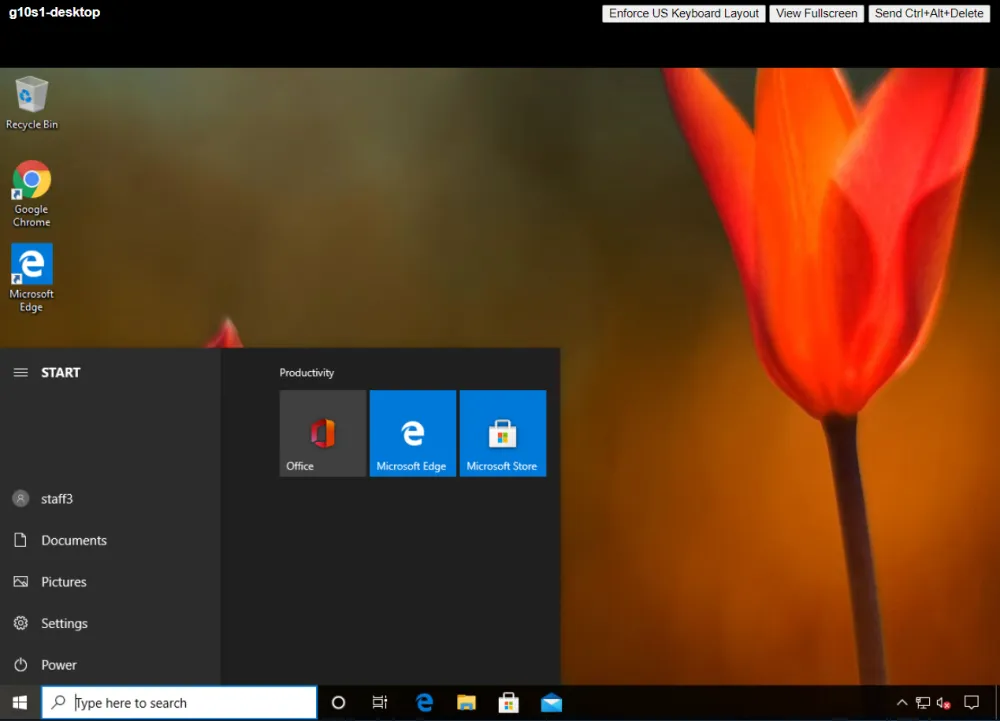
- Restart the Windows 10 VM and log in as staff3 and confirm the policies have been applied, similar to the below image:
gXsY-desktop