Visual Studio Code in Azure Cloud:
- It’s a web-based version of VS Code that runs in a web browser.
- To access it, navigate to portal.azure.com, select the 9-dot grid icon in the upper left corner, and select Visual Studio Code.
- You can also access it directly at vscode.dev.
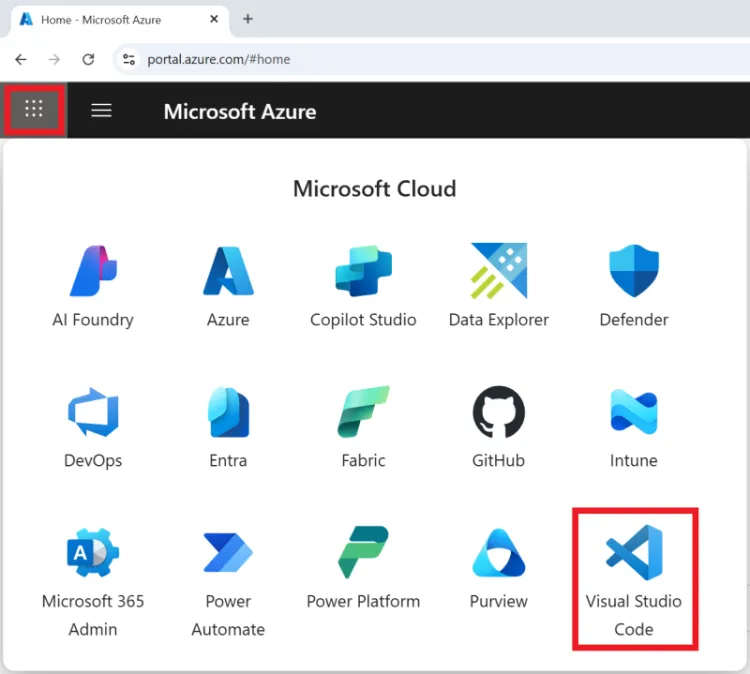
- Click on Allow to have ‘VS Code for the Web - Azure’ access your account.
- Select your Catamount email account, then your WCU tenant, and finally your Azure for Students subscription.
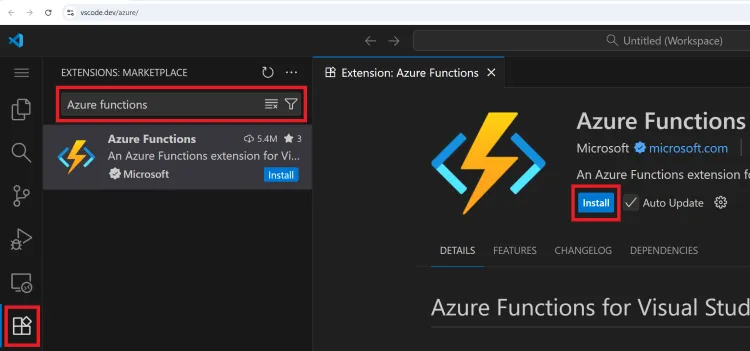
In the Web-Based Version of VS Code, Install the Azure Functions Extension:
- The Azure Functions extension allows for you to quickly create, debug, manage, and deploy serverless apps directly from VS Code.
Create a Python Azure Function to Display Your Public IP Address:
-
In VS Code, select the Azure Functions extension.
-
Ensure that the Azure icon in the activity bar is selected, then in the WORKSPACE (Local) area, select Create Function Project…
- Select the folder that will contain your function project (e.g., azuredev-6fd5). Choose Python as the language. Select Python interpreter 3.12 as the virtual environment. Select the HTTP trigger template and name the function, Lastname_gX_sY_pubIP. Then select Anonymous for the authorization level.
-
Replace the default template Python code in the file function_app.py with the below. Remember, Python is very indentation sensitive, so make sure the indentations line up appropriately. Make sure to rename the function in the code to match your function name, e.g., Lastname_gX_sY_pubIP. Replace lastname, x, and y with your last name, group number, and student number.
function_app.py
1import azure.functions as func
2import logging
3app = func.FunctionApp(http_auth_level=func.AuthLevel.ANONYMOUS)
4@app.route(route="Lastname_gx_sy_pubIP")
5def Lastname_gx_sy_pubIP(req: func.HttpRequest) -> func.HttpResponse:
6    response = False
7    if (req.headers.get('X-Forwarded-For')):
8        response = req.headers.get('X-Forwarded-For').split(':')[0]
9    else:
10        response = "127.0.0.1"
11    format = req.params.get('format')
12    if (format == 'json'):
13        return func.HttpResponse("{\"ip\":\"%s\"}"% (response))
14    elif(format == 'jsonp'):
15        return func.HttpResponse("callback({\"ip\":\"%s\"});"% (response))
16    else:
17 return func.HttpResponse(response)-
To deploy the app to Azure, choose the Azure icon in the Activity bar, then in the Workspace area, highlight over Local Project and click the Deploy to Azure icon (looks like a cloud with an up arrow).
-
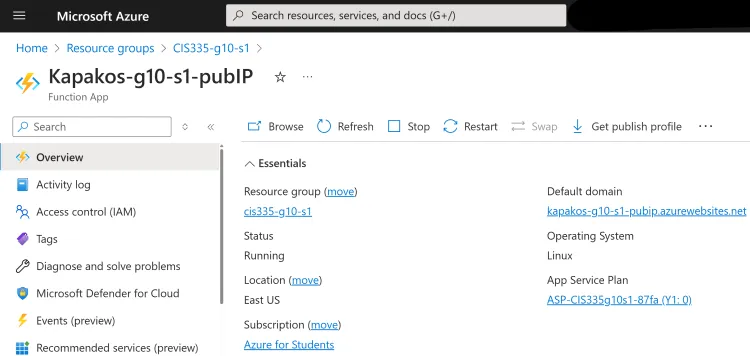
Choose the Function App you previously created, Lastname-gX-sY-pubIP to deploy the function to Azure.
-
Navigate back to the Azure Portal, select the Function App, click the Functions tab, select the function trigger, select the option, Get function URL, then finally copy the Function URL.
-
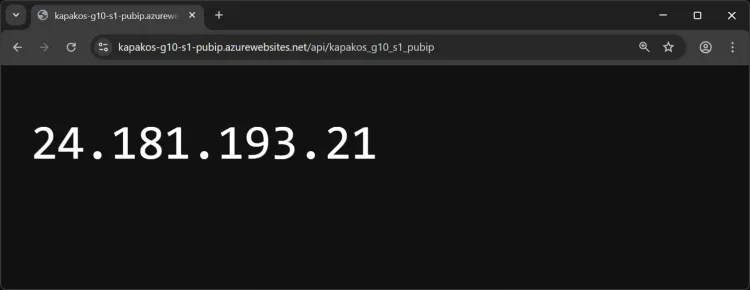
Finally, paste the URL into a web browser tab to display the Public IP address.
-
Submit a screenshot of the Function App HTTP Response showing the IP address and the Overview page of the Azure Function App.