Skip to content
- Go the Azure portal, portal.azure.com. Login with your Azure for Students subscription.
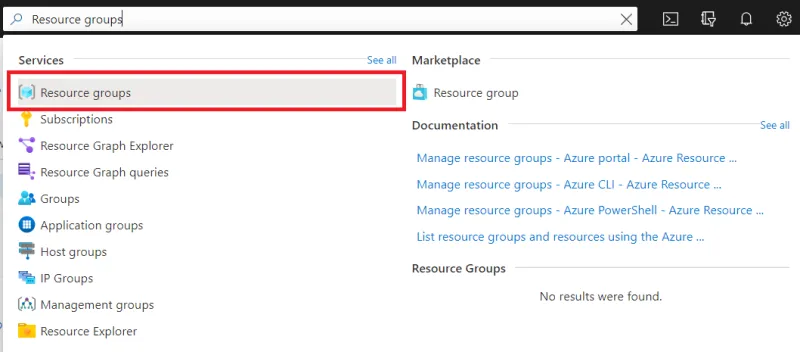
- Search for “Resource groups” in the global search bar.
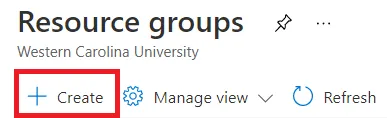
- Open the Create Resource groups blade by clicking the + Create tab.
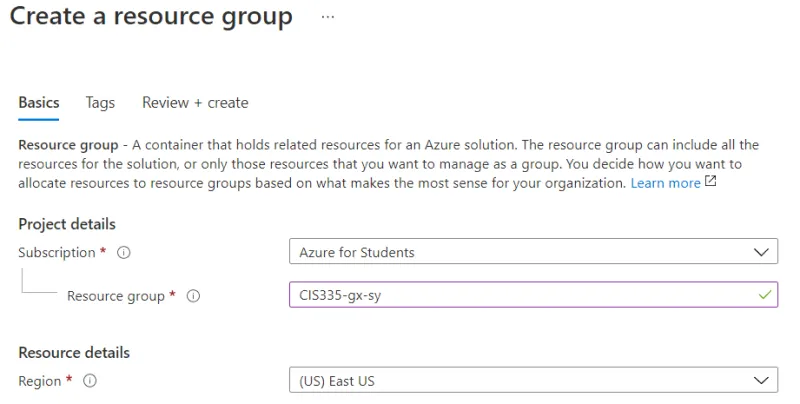
- Below, on the Basics page we can name the resource group: CIS335-gx-sy (Where x is your group # and y is your student #):
- Finally, click the Review + create tab. Then click the Create button.